月別アーカイブ: 2025年12月

最小構成の OpenCV で輪郭検出に成功!

すべてを忘れて、無我夢中で、書きました!
自分史上、最高速のマークシートリーダーです。
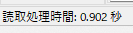
100 設問8選択肢のマークシート 42 枚を、My PC では、最短 0.902 秒で読みます。

ちゃんとマークしてない、~ みたいな線でもしっかり読んでくれます・・・

 ↑ この画面左下部分を拡大

1枚ではありません。42枚(33,600個のマーク)読んでます。


しかも、このサイズ! フロッピーディスク2枚に収ま・・・らないか。3枚なら余裕。
(収めたくても、フロッピー。もぉ、ないけど!)

このプログラムは、まだ実際の採点現場で動作検証しておりませんので公開できませんが、このプログラムで利用した Secret Weapon 的存在が Delphi 用の OpenCV です。

・・・ ということで、今回は「マークシートリーダー的なプログラムを作るために必要な、最小構成の OpenCV 」についてのお話です。

【もくじ】

1.そもそも OpenCV とは?
2.最小構成のOpenCVで画像を表示
3.最小構成のOpenCVで輪郭検出
4.まとめ
5.お願いとお断り

1.そもそも OpenCV とは?

正式名称は Open Source Computer Vision Library。よく説明に使われるのは「ソースコードが公開されている画像処理ライブラリ」、つまり、誰でも自由に見たり、使ったり、改良したりできる仕組みを持った、みんなで育てるソフトウェアということでしょうか。

自分的には『 コンピュータの眼 』だと、思っとります。

Python を学ぶ課程で、OpenCV を利用すると様々な画像処理が手軽に実装できることを知りました。例えばマークシートの解答欄を検出するための基準となる特徴点の検出や、解答欄矩形の座標の取得等、OpenCV のライブラリを使えば「夢みたいなこと」が「走召!」簡単とは言えませんが、僕でも勉強すれば、Python を介して何とか実装できることを知ったのです!

知ったのですが・・・

ただ、僕には、それを直接 Delphi から、使うことはできませんでした・・・

それを導入しようとしても・・・、エラーが、いっぱい、出て。

だから、今、思えば、ものすごく遠回りをして、OpenCV の機能を使ってきました。Python4Delphi や Embeddable Python には、感謝しても、感謝しきれませんが・・・。

今回、生成 AI から様々なヒントをもらい、ようやく My PC で最小構成の OpenCV を使って画像処理を実行することに成功しました!

出来てしまえば、それは、あっけないくらい、カンタンなことでしたが。

もしかしたら・・・、ほんとうに、もしかしたら、ですが、僕と同じように、画像の表示・輪郭検出等が可能な最小構成の OpenCV の実装方法について悩んでいらっしゃる方がいるかもしれないと思い、(自分的には私的究極の目的であるマークシートリーダーを作成するために必要な・・・という但し書き付きですが)、僕的に必要とする最小構成の OpenCV について、ごく浅い、拙い経験を元に、記事としてここに残すことにした次第です。

2.最小構成のOpenCVで画像を表示

ナニはともあれ、OpenCV がなくては何にも始まりませんので、まず、最初にコレを入手します。

ただし、イロイロと問題がありまして、私の場合、最新版ではないモノが欲しいのです。なぜなら、作りたいプログラムは 32 ビット版だから。となると、現在入手可能な 32 ビット版の OpenCV はこれ一択のようです。(間違っていたらごめんなさい)

https://github.com/Laex/Delphi-OpenCV

それからDelphi 環境で OpenCV を実行するためには OpenCV の DLL が必要なので、SourceForge から OpenCV 2.4.13.6 をダウンロード。こっちは『OpenCV 2.4.13.6』で検索してヒットする SourceForge の Download opencv-2.4.13.6-vc14.exe (OpenCV) リンクをクリックしたら Windows 用バイナリが勝手にダウンロードされたので、これを展開。

展開先の opencv-2.4.13.6-vc14\opencv\build\x86\vc14\bin に DLL があるので、必要な DLL を Delphi で作成する exe があるフォルダにあとからコピーします。

あと、OpenCV 2.4.13.6 の Windowsビルドは Visual C++ 2015 (VC14) でコンパイルされているそうなので、msvcp140.dll や vcruntime140.dll が必要。

https://my.visualstudio.com/Downloads/Featured?mkt=ja-jp

上のリンク先『ダウンロードとプロダクト キー』へ行き、表示される画面の左側の『Developer Tools』に『Visual Studio 2022』(リンク)をクリック。

表示されたページの中ほどに「Visual C++ Redistributable for Visual Studio 2022」があるので、その右側の ComboBox みたいな部分で x64 を x86 に変更して『ダウンロード』ボタンをクリック。

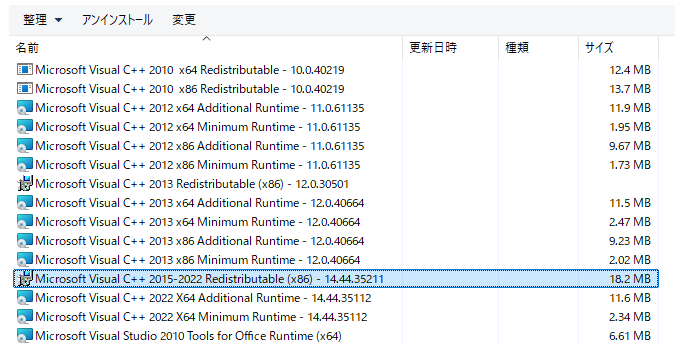
「Visual C++ Redistributable for Visual Studio 2022」は「VC_redist.x86.exe」で保存されました。これをインストールすると、2015 以降のランタイム(2015, 2017, 2019, 2022)は統合されているため、「Visual C++ 2015 Redistributable」も含まれてインストールされるようです。

実際のインストール作業では、VC_redist.x86.exe をダウンロードから任意のフォルダにコピペして、ダブルクリックして実行(実行時、インストール画面はタスクバー内に出現するので注意!)→ インストール完了後、システムの再起動が必要でした。

再起動後、PowerShell(x86) を起動して確認。x86 版のインストールを確認するには、PowerShell も x86 版でないといけません。x64 版で確認しようとして『パスが存在しないため検出できません』と赤文字で表示され、慌てふためいた経験を持つ人がここに約1名。ぎゃはは。

PowerShell(x86)で次のコマンドを入力してインストール結果を確認します。

PS C:\Users\xxx> Get-ItemProperty "HKLM:\SOFTWARE\Microsoft\VisualStudio\14.0\VC\Runtimes\x86"
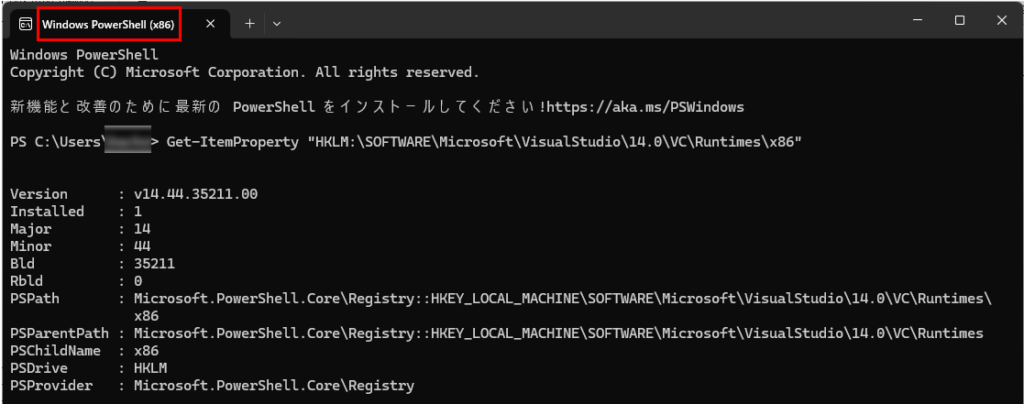
画面中ほどに、Installed : 1 を発見!


また、コントロールパネルの「プログラムと機能」を開いて存在を確認。


DLL の存在も確認。PowerShell で次のコマンドを入力して True が返ることを確認します。

Test-Path "C:\Windows\SysWOW64\msvcp140.dll"
Test-Path "C:\Windows\SysWOW64\vcruntime140.dll"
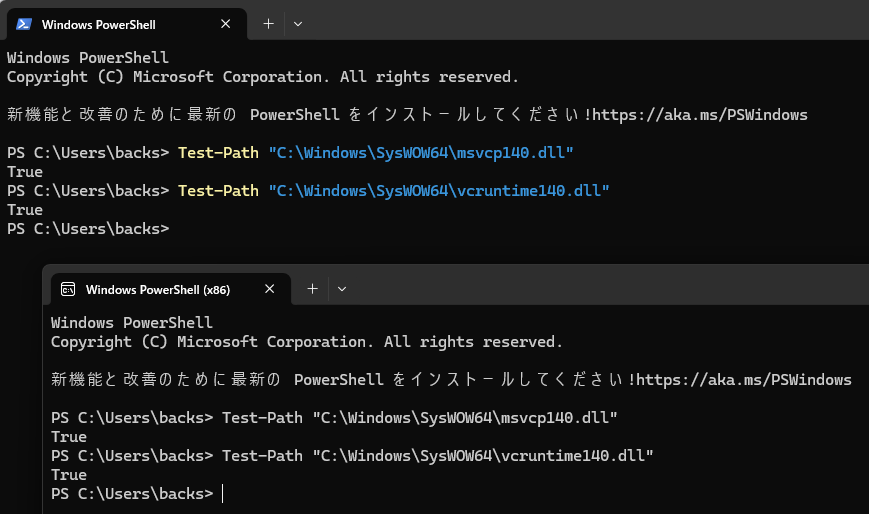
これは x64 版でも、x86 版でも可能でした( x64 版の方がカラフル!)

で、先にダウンロードしていた Delphi-OpenCV-master.zip も任意の場所に展開して、source フォルダの中にある拡張子が .pas のファイルから次のファイルのみ、Delphi のプロジェクトファイル(.dproj)があるフォルダへコピーします。
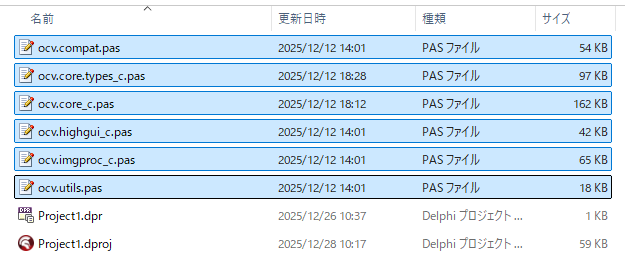

ちなみに各ファイルの役割分担は・・・

型定義 → ocv.compat.pas
画像構造体(IplImage) → ocv.core.types_c.pas
コア処理 → ocv.core_c.pas
画像読み込み / 保存 → ocv.highgui_c.pas
画像処理(ぼかし・二値化・輪郭など) → ocv.imgproc_c.pas
ユーティリティ → ocv.utils.pas

これだけで次の機能はすべて使えました!

・画像読み込み(cvLoadImage)
・グレースケール化
・ぼかし
・二値化
・輪郭抽出(マーク位置判定の要)
・画像の部分切り出し

「opencv-2.4.13.6-vc14\opencv\build\x86\vc14\bin に DLL がある」と先に言いましたが、次の DLL を exe と同じ場所へコピーします(先に Form だけ作っておいて、1回、実行して exe を作成しておく必要があります)。

将来、作成したプログラムを公開(配布)する予定がある場合は、OpenCV 本体の LICENSE ファイルをここでダウンロードして exe と同じ場所に DLL と一緒に置いておくのがよいと思います。OpenCV を配布する際は、Delphi‑OpenCV の LICENSE( MPL-1.1.txt )に加えて、OpenCV 本体の LICENSE ファイルも同梱して配布する必要があるからです。忘れないように必ずやっておきましょう。

ちなみに、OpenCV 本体の LICENSE ファイルは、ダウンロードする必要があるようです。次の場所から入手できました。

https://github.com/opencv/opencv/blob/2.4/LICENSE

これでプログラミングする準備ができました!
OpenCV で画像を表示するコードを書いて、本当に OpenCV が使えるか? 確認です。

Form1 の上に Memo1 と Button1 と ScrollBox1(親)と Image1(子 )を置いて、Memo1 の Align を alBottom に設定し、続けて Button1 も Align を alBottom に設定しておいて、ScrollBox1 の Align を alClient に設定します。Form1 は、最大化状態で表示されるよう、オブジェクトインスペクタで WindowState プロパティを wsMaximized にしておきます。
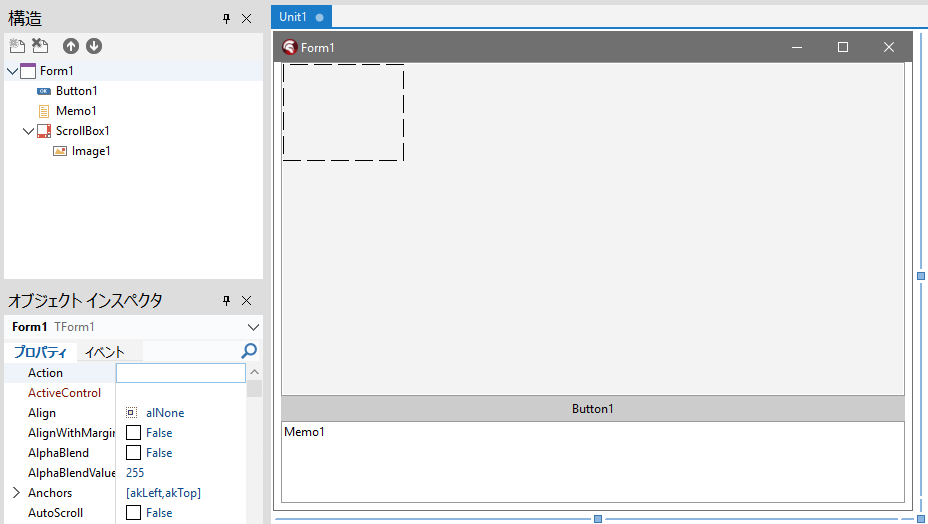
構造ペインを見ていただければ、ScrollBox1 の存在と親子関係がわかるかと・・・


exe と同じ場所にマークシートの画像( sheet.jpg )を用意して、次のコードを書きます。
あと Memo1 の Lines は Memo1 を消して空にしておきます。

procedure TForm1.FormShow(Sender: TObject);
var
  img: pIplImage;
begin
  img := cvLoadImage(
    PAnsiChar(AnsiString(ExtractFilePath(Application.ExeName) + 'sheet.jpg')),
    CV_LOAD_IMAGE_COLOR);
  if Assigned(img) then
  begin
    frameBitmap := TBitmap.Create;
    frameBitmap.PixelFormat := pf24bit;
    frameBitmap.HandleType := bmDIB;

    IplImage2Bitmap(img, frameBitmap);

    //Image1 のサイズを画像に合わせて変更
    Image1.Picture.Assign(nil);
    Image1.Width  := frameBitmap.Width;
    Image1.Height := frameBitmap.Height;

    //表示
    Image1.Picture.Bitmap.Assign(frameBitmap);

    Memo1.Lines.Add('Loaded and displayed sheet.');
    cvReleaseImage(img);
  end else
    Memo1.Lines.Add('Failed!');
end;

実行してみました!
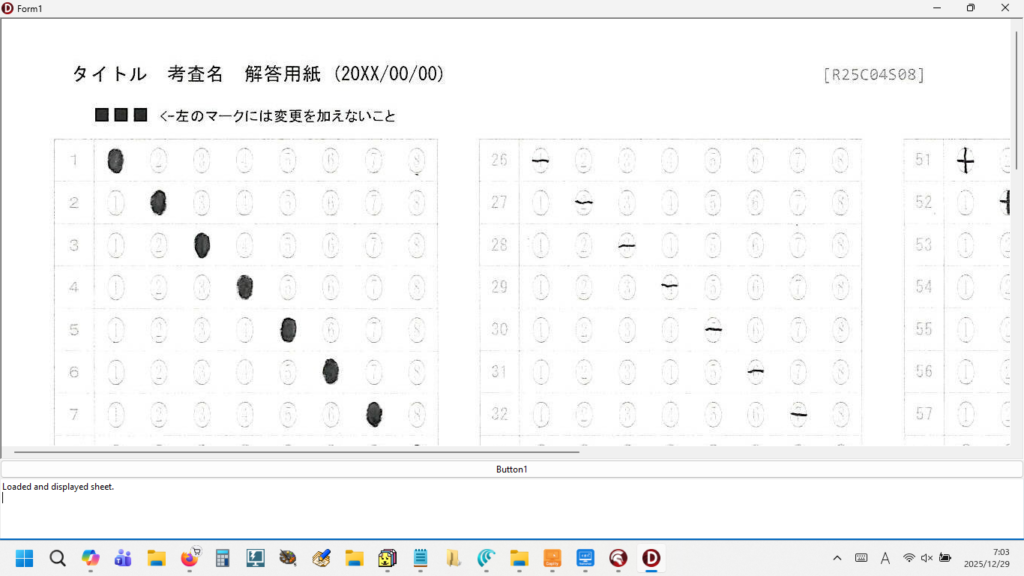
やった! やった!!

ちなみに、マウスのホイールで画像をスクロールさせるなら、ScrollBox1 の OnMouseWheel 手続きを作成して、次のコードを記述します。

procedure TForm1.ScrollBox1MouseWheel(Sender: TObject; Shift: TShiftState;
  WheelDelta: Integer; MousePos: TPoint; var Handled: Boolean);
const
  ScrollStep = 40; //ホイール1回の移動量
begin
  if ssShift in Shift then
  begin
    //横スクロール(Shift + ホイール)
    ScrollBox1.HorzScrollBar.Position :=
      ScrollBox1.HorzScrollBar.Position - (WheelDelta div 120) * ScrollStep;
  end
  else
  begin
    //縦スクロール(通常)
    ScrollBox1.VertScrollBar.Position :=
      ScrollBox1.VertScrollBar.Position - (WheelDelta div 120) * ScrollStep;
  end;
  //処理済み
  Handled := True;
end;

ながーい間、夢だった OpenCV で( Python の力も借りずに)画像が表示できました!
自分には無理だとあきらめていた時期もありましたので、まさに感無量ですが、まだ確認しなければならないことがあります。

それは『輪郭検出』。

マークシートリーダーを作成するために OpenCV が必要な理由のすべてがここにあります。

私が過去に作ったマークシートリーダーでは、マークシートの左上に印刷されたトリプル・ドット。この ■■■ の左上の座標を起点として各設問群矩形までの距離を計測(左上・右下の座標を取得すれば矩形の幅と高さが計算できる)し、各設問群のブロックを切り出して、それを行、そして列に分割、ひとつひとつのマークを切り出して塗り面積の大きなものを「マークあり」と判定しています。

マークシートは印刷物ですから、1枚1枚ごとにどうしても微妙な印刷位置のズレが発生するのは避けられません(現在のプリンタは優秀でほとんどズレませんが)。また、マークシートをスキャナーでスキャンした際にも、1枚ごとに異なる微妙なズレや傾きが発生します。しかし、■■■ と各設問群矩形の距離は紙が濡れて乾いた後ならともかく、通常の状態では絶対に変化しません。ですので、最初に ■■■ の位置を検出して、そこからの距離を用いてマークシートを切り出せば、印刷位置のズレに強い、すなわち、マーク切り出し位置が「ブレない」プログラムが作れます。

ですので、この『輪郭検出』が安定して成功するか・どうががマークシートリーダーそのものの成否のカギを握っています。

『輪郭検出』 はたして、それが出来るか、どうか?

3.最小構成のOpenCVで輪郭検出

Button1 のクリックイベント(手続き)に、次のコードを書きます。

procedure TForm1.Button1Click(Sender: TObject);
const
  {$IFNDEF CV_GAUSSIAN}
  CV_GAUSSIAN = 2;
  {$ENDIF}
  {$IFNDEF CV_GRAY2BGR}
  CV_GRAY2BGR = 8;
  {$ENDIF}
  {$IFNDEF CV_THRESH_BINARY_INV}
  CV_THRESH_BINARY_INV = 1;
  {$ENDIF}

type
  TRectInfo = record
    x, y, w, h: Integer;
  end;

var
  src, gray, bin: pIplImage;
  colorImg: pIplImage;
  contours, c: pCvSeq;
  storage: pCvMemStorage;
  rect: TCvRect;
  bmp: TBitmap;
  y, i, j, k, l: Integer;
  Lcandidates: array of TRectInfo;
  ti: TRectInfo;
  found: Boolean;
  bestIdx: Integer;
  dx1, dx2: Integer;
  minX, minY, maxX, maxY: Integer;
  strMsg: string;
  LeftX, TopY: Integer;
  intX, intY: Integer;
  rowHeight, colWidth: Double;
  x1, x2, y1, y2: Integer;
  R: TRect;
  roi: pIplImage;
  meanVal: TCvScalar;
  intRowNum, intSelNum: integer;
  GridRow: Integer;
  area: Integer;
  marks: TStringList;
  roiArea: Integer;
  whiteRatio: Double;
  ratios: array of Double;
  maxRatio: Double;
  BNum, ENum: Integer;
  localRow: Integer;
  orig: pIplImage;
  bmpOrig: TBitmap;

  function SafeSetROI(img: pIplImage; x1,y1,x2,y2: Integer): Boolean;
  begin
    Result := False;
    if img = nil then Exit;
    if (x1 < 0) or (y1 < 0) then Exit;
    if (x2 > img^.width) or (y2 > img^.height) then Exit;
    if (x2 <= x1) or (y2 <= y1) then Exit;

    cvSetImageROI(img, cvRect(x1,y1,x2-x1,y2-y1));
    Result := True;
  end;

begin

  Memo1.Clear;

  src := cvLoadImage(PAnsiChar(AnsiString('sheet.jpg')), CV_LOAD_IMAGE_GRAYSCALE);
  if src = nil then
  begin
    Memo1.Lines.Add('マークシート画像が読み込めません');
    raise Exception.Create('画像読み込み失敗');
  end;

  gray := cvCloneImage(src);
  cvSmooth(src, gray, CV_GAUSSIAN, 5, 5);

  bin := cvCreateImage(cvSize(gray^.width, gray^.height), IPL_DEPTH_8U, 1);
  cvThreshold(gray, bin, 80, 255, CV_THRESH_BINARY_INV);

  storage := cvCreateMemStorage(0);
  contours := nil;
  cvFindContours(bin, storage, @contours,
                 SizeOf(TCvContour),
                 CV_RETR_EXTERNAL, CV_CHAIN_APPROX_SIMPLE,
                 cvPoint(0,0));

  colorImg := cvCreateImage(cvSize(gray^.width, gray^.height), IPL_DEPTH_8U, 3);
  cvCvtColor(gray, colorImg, CV_GRAY2BGR);

  SetLength(Lcandidates, 0);
  c := contours;
  while c <> nil do
  begin
    rect := cvBoundingRect(c, 0);

    if (rect.x < 400) and (rect.y < 250) and
       (rect.width >= 10) and (rect.width <= 30) and
       (rect.height >= 10) and (rect.height <= 30) and
       (Abs(rect.width - rect.height) <= 6) then
    begin
      ti.x := rect.x;
      ti.y := rect.y;
      ti.w := rect.width;
      ti.h := rect.height;
      i := Length(Lcandidates);
      SetLength(Lcandidates, i + 1);
      Lcandidates[i] := ti;
      Memo1.Lines.Add(Format('candidate: x=%d y=%d w=%d h=%d', [ti.x, ti.y, ti.w, ti.h]));
    end;

    c := c^.h_next;
  end;

  if Length(Lcandidates) < 3 then
  begin
    Memo1.Lines.Add('候補が3未満のため、条件を緩めて再収集します');
    SetLength(Lcandidates, 0);
    c := contours;
    while c <> nil do
    begin
      rect := cvBoundingRect(c, 0);
      if (rect.x < 500) and (rect.y < 400) and
         (rect.width >= 6) and (rect.width <= 60) and
         (rect.height >= 6) and (rect.height <= 60) and
         (Abs(rect.width - rect.height) <= 12) then
      begin
        ti.x := rect.x; ti.y := rect.y; ti.w := rect.width; ti.h := rect.height;
        i := Length(Lcandidates); SetLength(Lcandidates, i + 1); Lcandidates[i] := ti;
        Memo1.Lines.Add(Format('relaxed candidate: x=%d y=%d w=%d h=%d', [ti.x, ti.y, ti.w, ti.h]));
      end;
      c := c^.h_next;
    end;
  end;

  if Length(Lcandidates) < 3 then
  begin
    strMsg:='特徴点が見つかりませんでした'+ sLineBreak +'処理を中止します。';
    Application.MessageBox(PChar(strMsg), PChar('エラー'), MB_ICONERROR);
    bmp := TBitmap.Create;
    try
      bmp.PixelFormat := pf24bit;
      bmp.Width := colorImg^.width;
      bmp.Height := colorImg^.height;
      for y := 0 to bmp.Height - 1 do
        Move((colorImg^.imageData + y * colorImg^.widthStep)^, bmp.ScanLine[y]^, colorImg^.width * 3);
      DrawBitmapKeepAspect(Image1, bmp);
    finally
      bmp.Free;
    end;
    cvReleaseImage(colorImg);
    cvReleaseImage(bin);
    cvReleaseImage(gray);
    cvReleaseImage(src);
    cvReleaseMemStorage(storage);
    Exit;
  end;

  for i := 0 to Length(Lcandidates) - 2 do
    for j := i + 1 to Length(Lcandidates) - 1 do
      if Lcandidates[i].x > Lcandidates[j].x then
      begin
        ti := Lcandidates[i];
        Lcandidates[i] := Lcandidates[j];
        Lcandidates[j] := ti;
      end;

  found := False;
  bestIdx := -1;
  for i := 0 to Length(Lcandidates) - 3 do
  begin
    if (Abs(Lcandidates[i].y - Lcandidates[i+1].y) <= 8) and (Abs(Lcandidates[i].y - Lcandidates[i+2].y) <= 8) then
    begin
      dx1 := Lcandidates[i+1].x - Lcandidates[i].x;
      dx2 := Lcandidates[i+2].x - Lcandidates[i+1].x;
      if (dx1 >= 10) and (dx1 <= 60) and (dx2 >= 10) and (dx2 <= 60) and (Abs(dx1 - dx2) <= 12) then
      begin
        found := True;
        bestIdx := i;
        Break;
      end;
    end;
  end;

  if not found then
  begin
    strMsg:='特徴点が見つかりませんでした(詳細候補数=' + IntToStr(Length(Lcandidates)) + ')'+ sLineBreak +'処理を中止します。';
    Application.MessageBox(PChar(strMsg), PChar('エラー'), MB_ICONERROR);
    bmp := TBitmap.Create;
    try
      bmp.PixelFormat := pf24bit;
      bmp.Width := colorImg^.width;
      bmp.Height := colorImg^.height;
      for y := 0 to bmp.Height - 1 do
        Move((colorImg^.imageData + y * colorImg^.widthStep)^, bmp.ScanLine[y]^, colorImg^.width * 3);
      DrawBitmapKeepAspect(Image1, bmp);
    finally
      bmp.Free;
    end;
    // cleanup
    if colorImg <> nil then cvReleaseImage(colorImg);
    if bin <> nil then cvReleaseImage(bin);
    if gray <> nil then cvReleaseImage(gray);
    if src <> nil then cvReleaseImage(src);
    if storage <> nil then cvReleaseMemStorage(storage);
    Exit;
  end;

  minX := Lcandidates[bestIdx].x;
  minY := Lcandidates[bestIdx].y;
  maxX := Lcandidates[bestIdx].x + Lcandidates[bestIdx].w;
  maxY := Lcandidates[bestIdx].y + Lcandidates[bestIdx].h;

  for i := 1 to 2 do
  begin
    if Lcandidates[bestIdx + i].x < minX then
      minX := Lcandidates[bestIdx + i].x;
    if Lcandidates[bestIdx + i].y < minY then
      minY := Lcandidates[bestIdx + i].y;
    if (Lcandidates[bestIdx + i].x + Lcandidates[bestIdx + i].w) > maxX then
      maxX := Lcandidates[bestIdx + i].x + Lcandidates[bestIdx + i].w;
    if (Lcandidates[bestIdx + i].y + Lcandidates[bestIdx + i].h) > maxY then
      maxY := Lcandidates[bestIdx + i].y + Lcandidates[bestIdx + i].h;
  end;

  cvRectangle(
    colorImg,
    cvPoint(minX, minY),
    cvPoint(maxX, maxY),
    CV_RGB(255, 0, 0),
    3);

  Memo1.Lines.Add(Format(
    '外接矩形: x=%d y=%d w=%d h=%d',
    [minX, minY, maxX - minX, maxY - minY]
  ));

  bmp := TBitmap.Create;
  try
    bmp.PixelFormat := pf24bit;
    bmp.Width := colorImg^.width;
    bmp.Height := colorImg^.height;
    for y := 0 to bmp.Height - 1 do
      Move((colorImg^.imageData + y * colorImg^.widthStep)^, bmp.ScanLine[y]^, colorImg^.width * 3);

    ScrollBox1.HorzScrollBar.Position := 0;
    ScrollBox1.VertScrollBar.Position := 0;
    Image1.Align := AlNone;

    Image1.Picture.Graphic := nil;
    Image1.Stretch := False;
    Image1.Left := 0;
    Image1.Top := 0;
    SetStretchBltMode(Image1.Canvas.Handle, HALFTONE);
    Image1.Picture.Bitmap := bmp;

  finally
    bmp.Free;
  end;

  //特徴点検出成功時の追加処理
  //if chkInfo.Checked then  //直後にぼかしのない画像を表示しているので、案内は必ず必要!
  //begin
    strMsg := '特徴点が正しく検出されたことを確認し、設問群数を設定してください。'+#13#10+
    '※設問群数: 解答欄を内包する幅と高さが同じ矩形の個数';
    Application.MessageBox(PChar(strMsg), PChar('情報'), MB_ICONINFORMATION);
  //end;

  //元画像(ぼかしなし)を再読み込みして表示
  orig := cvLoadImage(
    PAnsiChar(AnsiString('sheet.jpg')),
    CV_LOAD_IMAGE_COLOR
  );

  if orig <> nil then
  begin
    bmpOrig := TBitmap.Create;
    try
      bmpOrig.PixelFormat := pf24bit;
      bmpOrig.Width := orig^.width;
      bmpOrig.Height := orig^.height;

      for y := 0 to bmpOrig.Height - 1 do
        Move(
          (orig^.imageData + y * orig^.widthStep)^,
          bmpOrig.ScanLine[y]^,
          orig^.width * 3
        );

      //初期化
      ScrollBox1.HorzScrollBar.Position := 0;
      ScrollBox1.VertScrollBar.Position := 0;
      Image1.Align := alNone;
      Image1.Picture.Graphic := nil;
      Image1.Stretch := False;
      Image1.Left := 0;
      Image1.Top := 0;

      Image1.Picture.Bitmap := bmpOrig;

    finally
      bmpOrig.Free;
      cvReleaseImage(orig);
    end;
  end;

  // cleanup
  if colorImg <> nil then cvReleaseImage(colorImg);
  if bin <> nil then cvReleaseImage(bin);
  if gray <> nil then cvReleaseImage(gray);
  if src <> nil then cvReleaseImage(src);
  if storage <> nil then cvReleaseMemStorage(storage);

end;

祈るような気持ちで、実行!
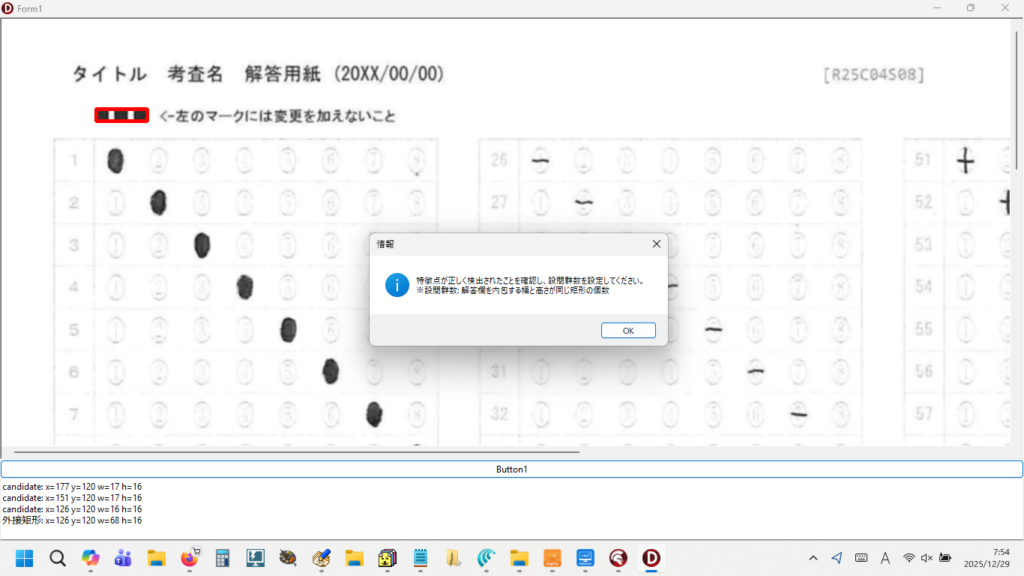
OpenCV は ■■■ をしっかり見つけてくれました!

これさえ出来れば、この勝負、
もう勝ったようなものです。

あとは・・・

日に夜を次いでプログラミングに没頭し、

自分史上最高のマークシートリーダーを完成させるだけです!

4.まとめ

(1)32 bit 環境で使える OpenCV は opencv-2.4.13.6-vc14 がある。
(2)動作には Visual C++ Redistributable for Visual Studio 2022 のインストールも必要だった。
(3)必要最小限の .pas と OpenCV の DLL を用意すればマークシートリーダーは作成可能。

5.お願いとお断り

このサイトの内容を利用される場合は、自己責任でお願いします。記載した内容(プログラムを含む)を利用した結果、利用者および第三者に損害が発生したとしても、このサイトの管理者は一切責任を負えません。予め、ご了承ください。
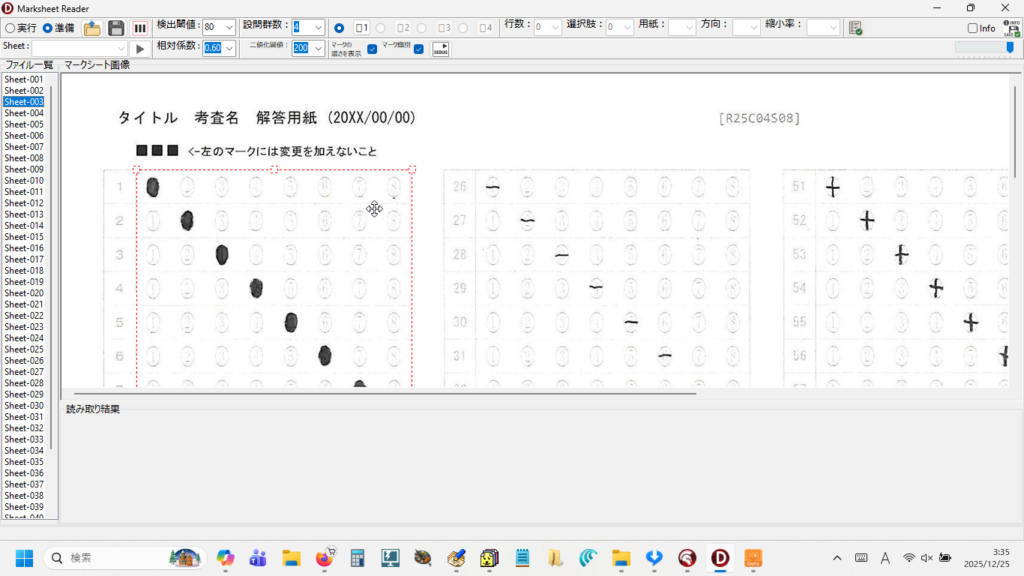
PaintBoxでラバーバンド

現在、開発中の軽量&超高速マークシートリーダー

( 50 設問のマークシート 40 枚を1秒程度で読んでくれます!)

僕にはずっと以前から、どうしてもやりたかったことが1つあって、それは Delphi 用の OpenCV ラッパー(OpenCV の C/C++ API を Delphi から呼び出すための橋渡しするプログラム)を使って、軽量かつ超高速なマークシートリーダーを作ること。

初めてマークシートリーダーのプログラムを書いた時は、もうそれが動いただけで本当にうれしかった。マークシート 40 枚を読み取るのにたとえ数分!かかっても大満足だった。

でも、だんだん、もう少し、早くできないかな・・・って思うようになって、PythonForDelphi を使ってバックグラウンドで Python 用の OpenCV を動かして、最初に作ったものよりは・・・かなり高速に動作するバージョンアップ版(?)をなんとか完成させた。

あの頃はもちろん AI なんてなかったし、Google 先生だけが頼りで、わからないことを解決して前へ進むのに今の何倍も時間が必要だったけれど、読み取り速度がどうあろうと、期待した通りにちゃんと動くマークシートリーダーが出来たことが、むちゃくちゃうれしかった。ただ、OpenCV をはじめとして、どうしても必要なライブラリをインストールした Embeddable Python は 158 MB くらいになっちゃって(泣)。

Zip ファイルを展開するにも時間がかかるし、それより何より、初回起動時に Windows による DLL のチェックが走って、マシンによっては数分間フリーズ状態が発生して・・・

いちばんイイのは、Delphi 用の OpenCV ラッパーを使ってプログラムを書けばいいんだって、頭ではわかっていたんだけれど、どうしてもそれが出来なかった。なぜかって言うと、答えは簡単。僕には Delphi 用の OpenCV ラッパーを PC に導入して動かすことが、どうしても出来なかったんだ。

エラーが、たくさん、出て。そして、それを自力で解決することができなかった・・・。

先日、ふと思い立って、マークシートリーダーを作るために必要な必要最低限の OpenCV ラッパーの構成を AI に訊いてみた。少し苦労したけど、なんとか、最小構成の OpenCV ラッパーを僕の PC に導入することに成功。夢の実現にやっと一歩、近づけた。

そこで、新しいマークシートリーダーを作り始める前に準備しておこうと思ったのが、今回紹介する PaintBox で作ったラバーバンド。マークシートのマーク欄のブロックの座標を取得する際に、これがどうしても必要なんだけれど、夢に描いたような・・・1ピクセル単位で大きさの微調整が可能で、その内部をドラッグすれば、なめらかに移動も出来るラバーバンドは自分史的にはまだ未実装・・・。ずっと、ずっと、長い間、微調整が可能な、思った通りに動いてくれるラバーバンドが作りたかった。

今回、あくまでも自分的には・・・ですが、かなり満足できるものができたので、どなた様かの参考になればと思い、自分自身の備忘録も兼ねて、ここに書いておくことにしました。

【もくじ】

1.機能
2.実装
3.まとめ
4.お願いとお断り

1.機能

ラバーバンドに持たせたい機能は次の通り。

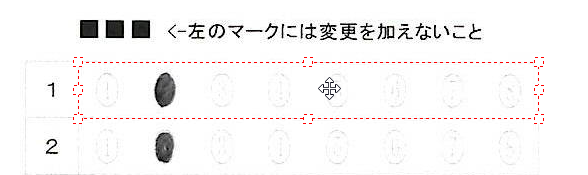
・マウスで TImage 上をドラッグして、ラバーバンド描画(赤の細い点線を使用)
・四隅+縦横中央の 8 ハンドル(グラブハンドル)でサイズ変更可能
・ラバーバンド内をクリックで「そのままの大きさ」でドラッグ移動
・ドラッグ中に自動スクロール(ドラッグ中にスクロール領域の端に来たらスクロール)
・描画終了(MouseUp)でラバーバンドの画像座標を出力
・ラバーバンド内クリックでフォーカスを取得
・矢印キーで、その向きに 1px 移動、Shift+矢印で辺ごとに 1px 拡大/縮小
・ラバーバンド外クリックで消去

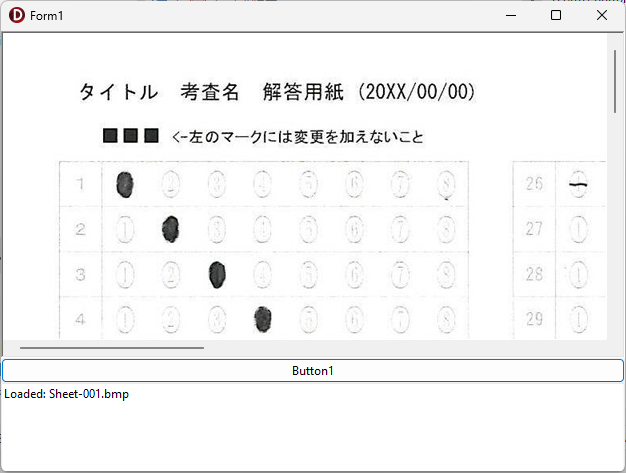
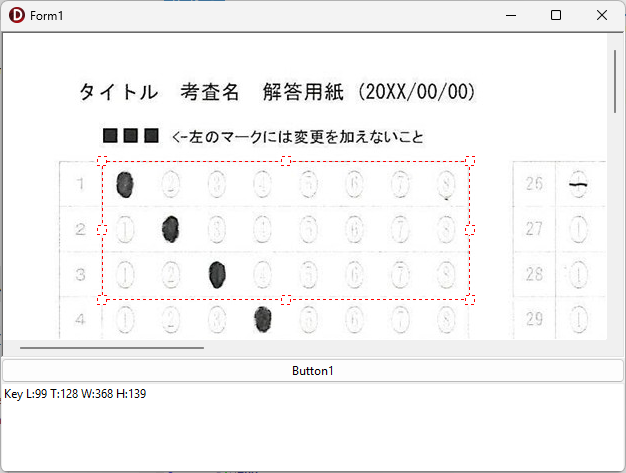
完成したラバーバンド

2.実装

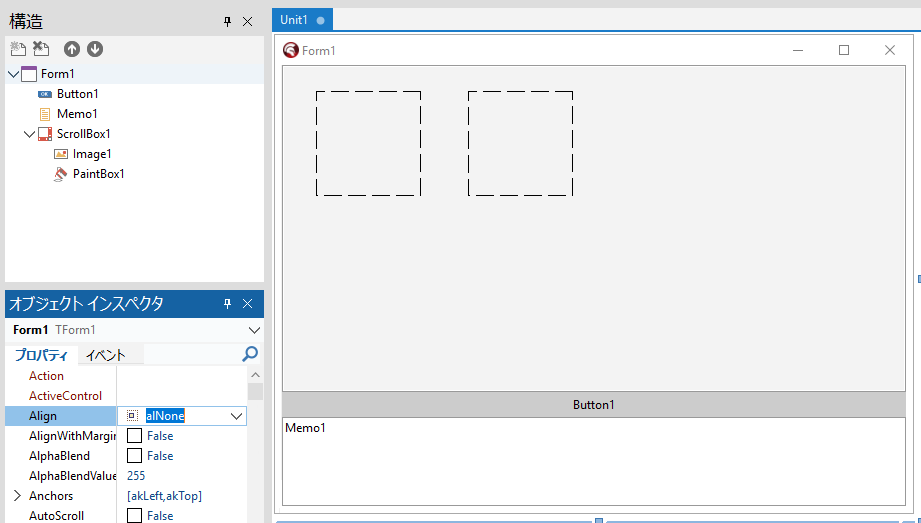
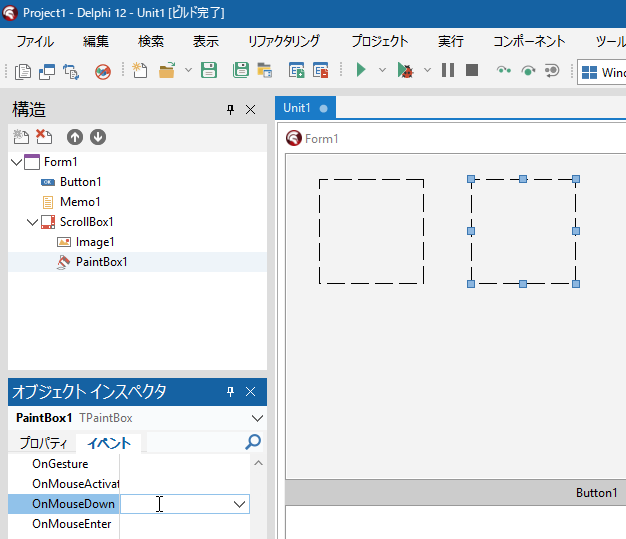
点線の枠は、左が Image1、右が PaintBox

構造ペインで親子関係も確認


Delphi を起動して、「ファイル」→「新規作成」→「Windows VCL アプリケーション」

Form1 上に、ScrollBox1 を置いて、その上に Image1 と PaintBox1 を置く。

あと Button1 と Memo1 も用意(見た目にこだわるなら、Memo1の lines プロパティを開いて、Memo1 というデフォルトで入っている文字列を消去しておいた方がいいかも?)。

Align の設定は、特にこだわりがなければ、Memo1 は alBottom に、続けて Button1 も alBottom に設定、ScrollBox1 は alClient に設定する。

Form を常に最大化して表示したければ、Form1 の WindowState プロパティを wsMaximized にする。

ここで1回実行(F9)して exe を作り、exe と同じ場所に任意のBMP(ビットマップ)画像を置いておく。


interface 部のコードは次の通り。

unit Unit1;

interface

uses
  Winapi.Windows, Winapi.Messages, System.SysUtils, System.Variants, System.Classes, Vcl.Graphics,
  Vcl.Controls, Vcl.Forms, Vcl.Dialogs, Vcl.ExtCtrls, Vcl.StdCtrls;

//ラバーバンド用に宣言
type
  THandlePos = (hpNone, hpLeftTop, hpTop, hpRightTop, hpRight,
                hpRightBottom, hpBottom, hpLeftBottom, hpLeft);

type
  TForm1 = class(TForm)

変数は次のように準備する。

  private
    { Private 宣言 }
    FBitmap: TBitmap;

    //Rubber band
    FRubberBandActive: Boolean;
    FHasRubber: Boolean;
    FRubberRect: TRect;

    FDragging: Boolean;
    FModeMoveSize: Boolean;
    FDragHandle: THandlePos;

    FStartPointImg: TPoint;

    //Zoom
    FZoom: Double;  //将来の拡張に備えて準備したもの

    //Scroll
    FAutoScrollMargin: Integer;
    FAutoScrollStep: Integer;


まずは、FormCreate 手続きを作成。

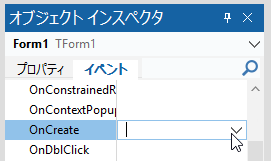
オブジェクトインスペクタをイベントに切り替えて、OnCreate をダブルクリック。


次の内容を記述する。

procedure TForm1.FormCreate(Sender: TObject);
begin
  //フォームがキーを受け取る
  Form1.KeyPreview := True;

  FBitmap := TBitmap.Create;
  Image1.Stretch := False;
  Image1.AutoSize := False;
  Image1.Center := False;

  //初期設定
  Image1.Align := AlNone;
  Image1.Stretch := False;
  Image1.AutoSize := False;
  Image1.Center := False;

  FRubberBandActive := False;
  FHasRubber := False;
  FDragging := False;
  FDragHandle := hpNone;
  FModeMoveSize := False;

  FZoom := 1.0;  //拡大表示が将来必要になった時への備え

  FAutoScrollMargin := 16;  //適宜変更してください
  FAutoScrollStep := 10;

  //PaintBox を Image1 上に重ねる
  PaintBox1.Parent := ScrollBox1;
  PaintBox1.Left := Image1.Left;
  PaintBox1.Top := Image1.Top;
  PaintBox1.Width := Image1.Width;
  PaintBox1.Height := Image1.Height;
  PaintBox1.BringToFront;
  //透明に見せる設定
  PaintBox1.ControlStyle := PaintBox1.ControlStyle - [csOpaque];

  //PaintBox を Image1 上に重ねる
  PaintBox1.Parent := ScrollBox1;
  PaintBox1.Left := Image1.Left;
  PaintBox1.Top := Image1.Top;
  PaintBox1.Width := Image1.Width;
  PaintBox1.Height := Image1.Height;
end;


続いて、Create と同様にして FormDestroy 手続きを準備。ビットマップを解放し忘れたらたいへんだ。

procedure TForm1.FormDestroy(Sender: TObject);
begin
  if assigned(FBitmap) then
  begin
    FBitmap.Free;
  end;
end;


次に、Button1 をダブルクリックして、Button1Click 手続きを作成。

procedure TForm1.Button1Click(Sender: TObject);
begin

  //読み込み(ビットマップ)
  FBitmap.LoadFromFile('Sheet-001.bmp');

  //ScrollBox のスクロール位置をリセット
  ScrollBox1.HorzScrollBar.Position := 0;
  ScrollBox1.VertScrollBar.Position := 0;

  Image1.Align := AlNone;
  //画像をクリア
  Image1.Picture.Graphic := nil;
  Image1.Stretch := False;
  Image1.AutoSize := False;  //UpdateImageDisplaySize に任せる
  Image1.Center := False;
  Image1.Left := 0;  //ScrollBox 左上に合わせる
  Image1.Top := 0;

  //画像を表示
  Image1.Picture.Bitmap.Assign(FBitmap);

  UpdateImageDisplaySize;

  Image1.Invalidate;
  Memo1.Lines.Add('Loaded: ' + 'Sheet-001.bmp');

  FRubberBandActive := not FRubberBandActive;
  if not FRubberBandActive then
  begin
    FHasRubber := False;
    PaintBox1.Invalidate;
  end;

  PaintBox1.BringToFront;

end;

UpdateImageDisplaySize が「未定義の識別子エラー」になるので、private 宣言部に UpdateImageDisplaySize 手続きを宣言。

  private
    { Private 宣言 }
    ・・・(省略)・・・
    procedure UpdateImageDisplaySize;

Shift+Ctrl+C して、次のように記述する。

procedure TForm1.UpdateImageDisplaySize;
var
  W, H: Integer;
begin

  if not Assigned(FBitmap) then Exit;

  //拡大後サイズ
  W := Round(FBitmap.Width  * FZoom);
  H := Round(FBitmap.Height * FZoom);

  //Image
  Image1.Align    := alNone;
  Image1.AutoSize := False;
  Image1.Stretch  := False;
  Image1.SetBounds(0, 0, W, H);

  //PaintBox(完全同期)
  PaintBox1.Align := alNone;
  PaintBox1.SetBounds(0, 0, W, H);

  PaintBox1.Invalidate;
end;

実行(F9)して、動作確認。フォームが表示されたら、Button1 をクリックして、exe と同じ場所に置いたビットマップ画像が表示されることを確認。右上の閉じるボタンをクリックして、終了。


いよいよラバーバンド作成本番へ。

Form1 上の PaintBox をクリックして選択し、OnMouseDown 手続きを作成。

オブジェクトインスペクタの OnMouseDown をダブルクリックする。


コードは、次の通り。「未定義の識別子エラー」が複数出るが、未作成の手続きや関数があるためなので、その手続きや関数を続けて作成する。

procedure TForm1.PaintBox1MouseDown(Sender: TObject; Button: TMouseButton;
  Shift: TShiftState; X, Y: Integer);
var
  imgP: TPoint;
begin
  if not FRubberBandActive then Exit;

  imgP := ScreenToImagePoint(X, Y);

  if FHasRubber then
  begin
    //ラバーバンド内クリック
    if PointInRectInclusive(FRubberRect, imgP) then
    begin
      FDragHandle := GetHandleAtPosImg(imgP);
      FModeMoveSize := (FDragHandle = hpNone);
      FDragging := True;
      FStartPointImg := imgP;

      //追加:掴んだハンドルに応じてカーソルを確定
      if FDragHandle <> hpNone then
        PaintBox1.Cursor := CursorFromHandle(FDragHandle)
      else
        PaintBox1.Cursor := crSizeAll;  //内部クリック=移動

      ScrollBox1.SetFocus;
      Exit;
    end
    else
    begin
      //外クリック → 削除
      FHasRubber := False;
      PaintBox1.Invalidate;
      UpdateRubberCursor;  //カーソルを戻す
      Exit;
    end;
  end;

  //新規作成
  FDragging := True;
  FModeMoveSize := False;
  FDragHandle := hpNone;
  FStartPointImg := imgP;
  FRubberRect := Rect(imgP.X, imgP.Y, imgP.X, imgP.Y);

  //新規作成中は十字カーソル固定
  PaintBox1.Cursor := crCross;

  PaintBox1.Invalidate;
end;


エラーをひとつずつ潰す。最初に、private 宣言部に ScreenToImagePoint 関数を宣言して、Shift+Ctrl+C を押し下げ。

この後、何度も private 宣言部に戻る必要があるので、変数宣言の最後の方(手続き・関数宣言の最初)あたりをクリックして、Shift+Ctrl+1 を実行しておけば、Ctrl+1 ですぐに private 宣言部に戻ってこれるのでとても便利。

  private
    { Private 宣言 }
    FBitmap: TBitmap;

    // Rubber band
    FRubberBandActive: Boolean;
    ・・・(省略)・・・

    function ScreenToImagePoint(X, Y: Integer): TPoint;


で、次のように記述。

function TForm1.ScreenToImagePoint(X, Y: Integer): TPoint;
begin
  Result.X := Round(X / FZoom);
  Result.Y := Round(Y / FZoom);
end;


次は、PointInRectInclusive 関数を作成。まず宣言して、

  private
    { Private 宣言 }
    ・・・(省略)・・・
    function ScreenToImagePoint(X, Y: Integer): TPoint;
    function PointInRectInclusive(const R: TRect; const P: TPoint): Boolean;


Shift+Ctrl+C して、次のように記述する。

function TForm1.PointInRectInclusive(const R: TRect; const P: TPoint): Boolean;
begin
  Result :=
    (P.X >= R.Left) and (P.X <= R.Right) and
    (P.Y >= R.Top)  and (P.Y <= R.Bottom);
end;


次は、GetHandleAtPosImg 関数を宣言。

  private
    { Private 宣言 }
    ・・・(省略)・・・
    function GetHandleAtPosImg(const P: TPoint): THandlePos;


こちらも Shift+Ctrl+C して、次のように記述する。

function TForm1.GetHandleAtPosImg(const P: TPoint): THandlePos;
const
  HSIZE = 8;
var
  cx: Integer;
begin

  Result := hpNone;

  // Top
  cx := (FRubberRect.Left + FRubberRect.Right) div 2;
  if Abs(P.Y - FRubberRect.Top) <= HSIZE then
  begin
    if Abs(P.X - FRubberRect.Left) <= HSIZE then Exit(hpLeftTop);
    if Abs(P.X - FRubberRect.Right) <= HSIZE then Exit(hpRightTop);
    if Abs(P.X - cx) <= HSIZE then Exit(hpTop);
  end;

  // Bottom
  if Abs(P.Y - FRubberRect.Bottom) <= HSIZE then
  begin
    if Abs(P.X - FRubberRect.Left) <= HSIZE then Exit(hpLeftBottom);
    if Abs(P.X - FRubberRect.Right) <= HSIZE then Exit(hpRightBottom);
    if Abs(P.X - cx) <= HSIZE then Exit(hpBottom);
  end;

  //Left /Right
  if Abs(P.X - FRubberRect.Left) <= HSIZE then Exit(hpLeft);
  if Abs(P.X - FRubberRect.Right) <= HSIZE then Exit(hpRight);

end;


次は、CursorFromHandle 関数を宣言。

  private
    { Private 宣言 }
    ・・・(省略)・・・
    function CursorFromHandle(H: THandlePos): TCursor;

こちらも Shift+Ctrl+C して、次のように記述する。

function TForm1.CursorFromHandle(H: THandlePos): TCursor;
begin
  case H of
    hpLeft, hpRight:
      Result := crSizeWE;

    hpTop, hpBottom:
      Result := crSizeNS;

    hpLeftTop, hpRightBottom:
      Result := crSizeNWSE;

    hpRightTop, hpLeftBottom:
      Result := crSizeNESW;

    else
      Result := crDefault;
  end;
end;


残りのエラーはあとひとつ。UpdateRubberCursor;

  private
    { Private 宣言 }
    ・・・(省略)・・・
    procedure UpdateRubberCursor;

Shift+Ctrl+C して、次のように記述する。

procedure TForm1.UpdateRubberCursor;
begin
  if FRubberBandActive then
    PaintBox1.Cursor := crCross
  else
    PaintBox1.Cursor := crDefault;
end;


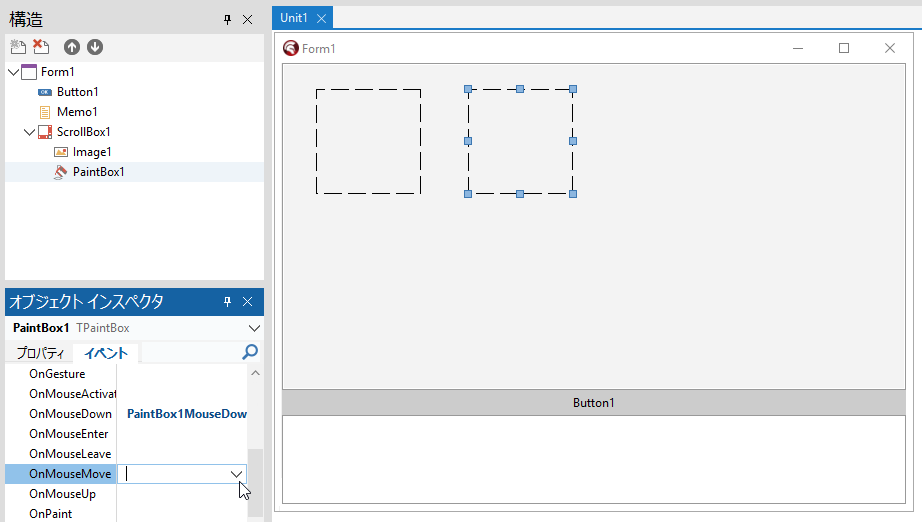
次は、PaintBox の OnMouseMove 手続きを作成。

オブジェクトインスペクタの OnMouseMove をダブルクリックする。


こちらは、次のように記述する。

procedure TForm1.PaintBox1MouseMove(Sender: TObject; Shift: TShiftState; X,
  Y: Integer);
var
  curImg: TPoint;
  screenPt: TPoint;
  dx, dy: Integer;
  H: THandlePos;
begin
  if not FRubberBandActive then Exit;

  curImg := ScreenToImagePoint(X, Y);

  //ドラッグ中のみ自動スクロール
  if FDragging then
  begin
    screenPt := PaintBox1.ClientToScreen(Point(X, Y));
    AutoScrollIfNeededFromScreen(screenPt);
  end;

  //矢印キーの形状をより適切に
  if not FDragging then
  begin
    if FHasRubber and PointInRectInclusive(FRubberRect, curImg) then
    begin
      H := GetHandleAtPosImg(curImg);
      if H <> hpNone then
        PaintBox1.Cursor := CursorFromHandle(H)
      else
        PaintBox1.Cursor := crSizeAll;  //内部=移動
    end
    else
      PaintBox1.Cursor := crCross; //ラバーバンド描画モード
    Exit;
  end;

  dx := curImg.X - FStartPointImg.X;
  dy := curImg.Y - FStartPointImg.Y;

  if FModeMoveSize then
  begin
    FRubberRect.Offset(dx, dy);
  end
  else
  begin
    case FDragHandle of
      hpLeftTop:
      begin
        FRubberRect.Left := curImg.X;
        FRubberRect.Top  := curImg.Y;
      end;

      hpTop:
        FRubberRect.Top := curImg.Y;

      hpRightTop:
      begin
        FRubberRect.Right := curImg.X;
        FRubberRect.Top   := curImg.Y;
      end;

      hpRight:
        FRubberRect.Right := curImg.X;

      hpRightBottom:
      begin
        FRubberRect.Right  := curImg.X;
        FRubberRect.Bottom := curImg.Y;
      end;

      hpBottom:
        FRubberRect.Bottom := curImg.Y;

      hpLeftBottom:
      begin
        FRubberRect.Left   := curImg.X;
        FRubberRect.Bottom := curImg.Y;
      end;

      hpLeft:
        FRubberRect.Left := curImg.X;

      hpNone:
      begin
        FRubberRect.Right  := curImg.X;
        FRubberRect.Bottom := curImg.Y;
      end;
    end;
  end;

  FStartPointImg := curImg;

  NormalizeRect(FRubberRect);

  //画像エリアを超えないよう制限
  if FRubberRect.Left < 0 then FRubberRect.Left := 0;
  if FRubberRect.Top < 0 then FRubberRect.Top := 0;
  if FRubberRect.Right > FBitmap.Width then FRubberRect.Right := FBitmap.Width;
  if FRubberRect.Bottom > FBitmap.Height then FRubberRect.Bottom := FBitmap.Height;

  PaintBox1.Invalidate;

end;


AutoScrollIfNeededFromScreen と、NormalizeRect が「未定義の識別子エラー」になるので、こちらもprivate 宣言部に手続きを宣言して、

  private
    { Private 宣言 }
    ・・・(省略)・・・
    procedure AutoScrollIfNeededFromScreen(const ScreenPt: TPoint);
    procedure NormalizeRect(var R: TRect);


Shift+Ctrl+C して、それぞれ次のように記述する。

procedure TForm1.AutoScrollIfNeededFromScreen(const ScreenPt: TPoint);
var
  pt: TPoint;
begin
  pt := ScreenToClient(ScreenPt);

  if pt.X < FAutoScrollMargin then
    ScrollBox1.HorzScrollBar.Position :=
      ScrollBox1.HorzScrollBar.Position - FAutoScrollStep
  else if pt.X > ScrollBox1.ClientWidth - FAutoScrollMargin then
    ScrollBox1.HorzScrollBar.Position :=
      ScrollBox1.HorzScrollBar.Position + FAutoScrollStep;

  if pt.Y < FAutoScrollMargin then
    ScrollBox1.VertScrollBar.Position :=
      ScrollBox1.VertScrollBar.Position - FAutoScrollStep
  else if pt.Y > ScrollBox1.ClientHeight - FAutoScrollMargin then
    ScrollBox1.VertScrollBar.Position :=
      ScrollBox1.VertScrollBar.Position + FAutoScrollStep;
end;
procedure TForm1.NormalizeRect(var R: TRect);
var
  Ll, Lt, Lr, Lb: Integer;
begin
  Ll := R.Left; Lt := R.Top;
  Lr := R.Right; Lb := R.Bottom;

  R.Left := Min(Ll, Lr);
  R.Top := Min(Lt, Lb);
  R.Right := Max(Ll, Lr);
  R.Bottom := Max(Lt, Lb);
end;

ここで、今度は Min と Max が「未定義の識別子エラー」になるので、uses に System.Math を追加する。

unit Unit1;

interface

uses
  Winapi.Windows, Winapi.Messages, System.SysUtils, System.Variants,
  System.Classes, Vcl.Graphics, Vcl.Controls, Vcl.Forms, Vcl.Dialogs,
  Vcl.ExtCtrls, Vcl.StdCtrls,  System.Math;


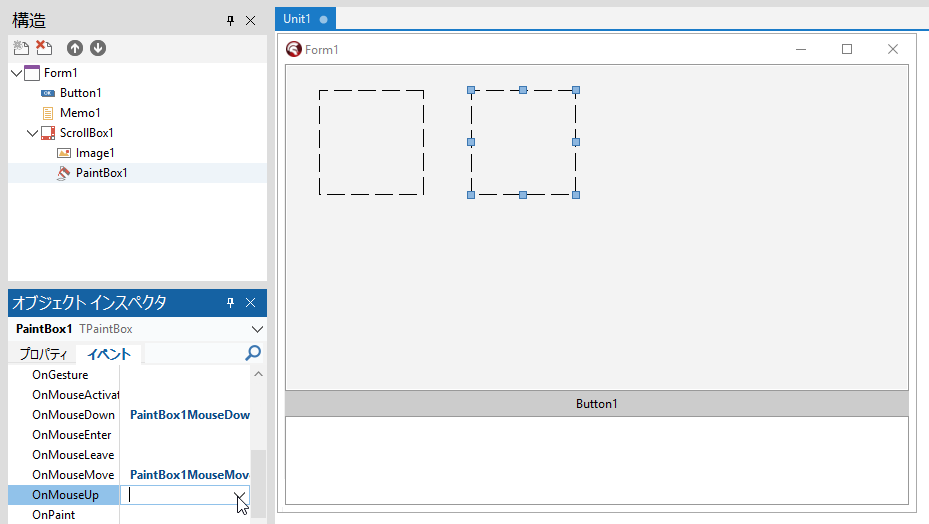
次は、PaintBox の OnMouseUp 手続きを作成。

オブジェクトインスペクタの OnMouseUp をダブルクリックする。


次の内容を記述。

procedure TForm1.PaintBox1MouseUp(Sender: TObject; Button: TMouseButton;
  Shift: TShiftState; X, Y: Integer);
begin
  if not FRubberBandActive then Exit;
  if not FDragging then Exit;

  FDragging := False;
  NormalizeRect(FRubberRect);
  FHasRubber := True;

  //ドラッグ終了後は状態に応じてカーソルを戻す
  UpdateRubberCursor;

  //矢印キー操作を有効にする
  ActiveControl := nil;

  EnsureRubberVisible;
  PaintBox1.Invalidate;

  //ラバーバンドの座標を取得
  UpdateRubberInfo('Mouse ');
end;


ここでは、EnsureRubberVisible と、 UpdateRubberInfo が「未定義の識別子エラー」になるので、private 宣言部で、EnsureRubberVisible 手続きと UpdateRubberInfo 手続きを宣言。

  private
    { Private 宣言 }
    ・・・(省略)・・・
    procedure EnsureRubberVisible;
    procedure UpdateRubberInfo(const Prefix: string = '');

次のように、それぞれの手続きを記述する。

procedure TForm1.EnsureRubberVisible;
var
  R: TRect;
  p: TPoint;
begin
  R := ImageToScreenRect(FRubberRect);
  p := PaintBox1.ClientToScreen(Point(R.Left, R.Top));
  AutoScrollIfNeededFromScreen(p);
end;
procedure TForm1.UpdateRubberInfo(const Prefix: string);
var
  R: TRect;
begin
  if not FHasRubber then Exit;

  R := FRubberRect;

  if Memo1.Lines.Count = 0 then
    Memo1.Lines.Add('')
  else
    Memo1.Lines[Memo1.Lines.Count - 1] := '';  //最終行を書き換える

  Memo1.Lines[Memo1.Lines.Count - 1] :=
    Format('%sL:%d T:%d W:%d H:%d',
      [Prefix, R.Left, R.Top, R.Right - R.Left, R.Bottom - R.Top]);
end;


すると、EnsureRubberVisible 手続きの ImageToScreenRect が「未定義の識別子エラー」になるので、これも潰す。

  private
    { Private 宣言 }
    ・・・(省略)・・・
    function ImageToScreenRect(const R: TRect): TRect;

Shift+Ctrl+C して、次のように記述する。

function TForm1.ImageToScreenRect(const R: TRect): TRect;
begin
  Result.Left   := Round(R.Left   * FZoom);
  Result.Top    := Round(R.Top    * FZoom);
  Result.Right  := Round(R.Right  * FZoom);
  Result.Bottom := Round(R.Bottom * FZoom);
end;


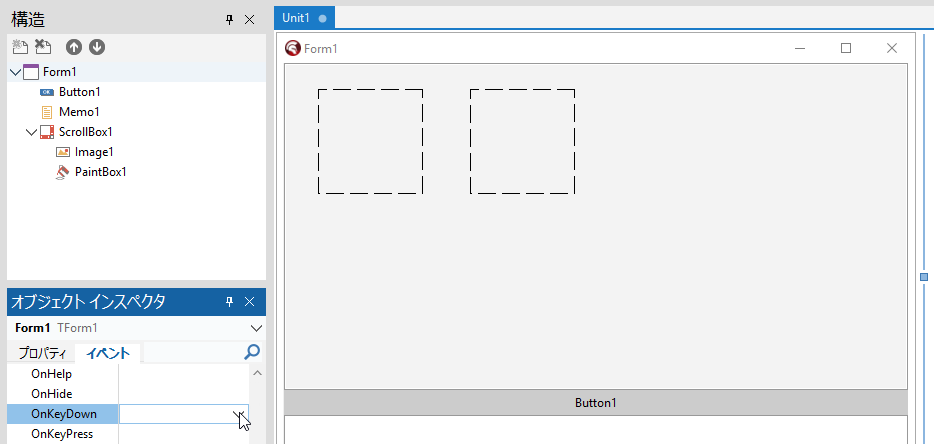
次は、Form1 の OnKeyDown 手続きを作成。まず、Form1 のタイトルバー付近をクリックして、Form1 をアクティブにしておき、

オブジェクトインスペクタの OnKeyDown をダブルクリック。


次のように記述する。

procedure TForm1.FormKeyDown(Sender: TObject; var Key: Word;
  Shift: TShiftState);
begin

  if not (FRubberBandActive and FHasRubber) then Exit;

  case Key of
    VK_LEFT:
      if ssShift in Shift then Dec(FRubberRect.Right)
      else FRubberRect.Offset(-1, 0);

    VK_RIGHT:
      if ssShift in Shift then Inc(FRubberRect.Right)
      else FRubberRect.Offset(1, 0);

    VK_UP:
      if ssShift in Shift then Dec(FRubberRect.Bottom)
      else FRubberRect.Offset(0, -1);

    VK_DOWN:
      if ssShift in Shift then Inc(FRubberRect.Bottom)
      else FRubberRect.Offset(0, 1);
  end;

  NormalizeRect(FRubberRect);
  PaintBox1.Invalidate;

  //ラバーバンドの座標を取得
  UpdateRubberInfo('Key ');

end;


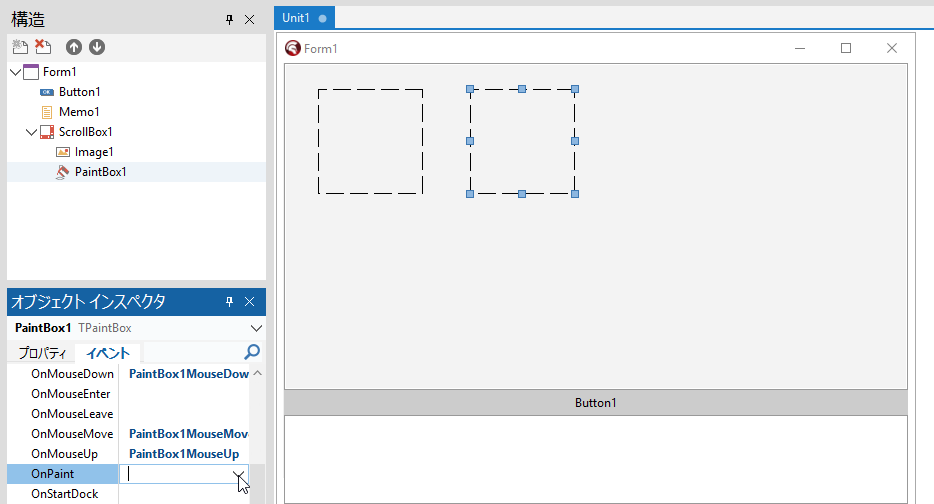
次は、PaintBox1Paint 手続きを作成。こちらは PaintBox1 をクリックしてアクティブにしておいて、

オブジェクトインスペクタの OnPaint をダブルクリックする。


次の内容を記述。

procedure TForm1.PaintBox1Paint(Sender: TObject);
var
  C: TCanvas;
  rS: TRect;
  pLT, pRT, pRB, pLB, pT, pB, pL, pR: TPoint;

  procedure DrawHandle(const P: TPoint);
  var
    R: TRect;
    S: Integer;
  begin
    S := 5;
    R := Rect(P.X - S, P.Y - S, P.X + S, P.Y + S);
    C.Brush.Color := clWhite;
    C.Pen.Color := clRed;
    C.Rectangle(R);
  end;

begin

  C := PaintBox1.Canvas;
  C.Brush.Style := bsClear;

  //初回ドラッグ中、ラバーバンドが描画されない
  //if not (FRubberBandActive and FHasRubber) then Exit;

  //初回ドラッグ中でもラバーバンドが描画される
  if not FRubberBandActive then Exit;
  if not (FDragging or FHasRubber) then Exit;

  rS := ImageToScreenRect(FRubberRect);

  //枠
  C.Pen.Style := psDot;
  C.Pen.Color := clRed;
  C.Rectangle(rS);

  //ハンドル位置
  pLT := ImageToScreenPoint(FRubberRect.Left,  FRubberRect.Top);
  pRT := ImageToScreenPoint(FRubberRect.Right, FRubberRect.Top);
  pRB := ImageToScreenPoint(FRubberRect.Right, FRubberRect.Bottom);
  pLB := ImageToScreenPoint(FRubberRect.Left,  FRubberRect.Bottom);

  pT := Point((pLT.X + pRT.X) div 2, pLT.Y);
  pB := Point((pLB.X + pRB.X) div 2, pLB.Y);
  pL := Point(pLT.X, (pLT.Y + pLB.Y) div 2);
  pR := Point(pRT.X, (pRT.Y + pRB.Y) div 2);

  DrawHandle(pLT);
  DrawHandle(pRT);
  DrawHandle(pRB);
  DrawHandle(pLB);
  DrawHandle(pT);
  DrawHandle(pB);
  DrawHandle(pL);
  DrawHandle(pR);

end;


ImageToScreenPoint が「未定義の識別子エラー」になるので、これを潰す。private 宣言部に戻って、ImageToScreenPoint 関数を宣言し、

  private
    { Private 宣言 }
    ・・・(省略)・・・
    function ImageToScreenPoint(Ix, Iy: Integer): TPoint;

Shift+Ctrl+C して、次のように記述する。

function TForm1.ImageToScreenPoint(Ix, Iy: Integer): TPoint;
begin
  Result.X := Round(Ix * FZoom);
  Result.Y := Round(Iy * FZoom);
end;


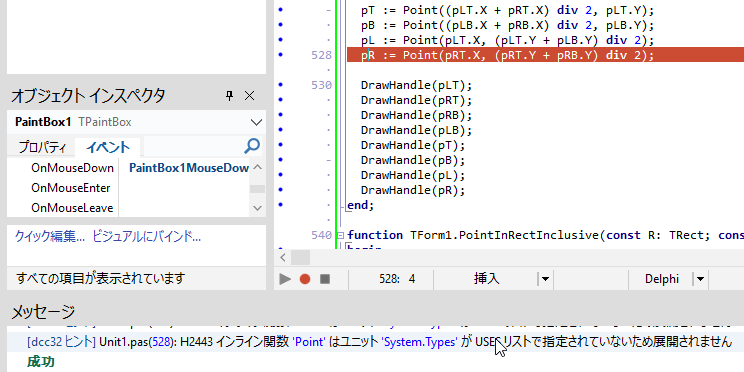
実行(F9)すると、「[dcc32 ヒント] Unit1.pas(529): H2443 インライン関数 ‘Point’ はユニット ‘System.Types’ が USES リストで指定されていないため展開されません」というヒントが表示されるので、uses に System.Types を追加する。

uses
  Winapi.Windows, Winapi.Messages, System.SysUtils, System.Variants,
  System.Classes, Vcl.Graphics, Vcl.Controls, Vcl.Forms, Vcl.Dialogs,
  Vcl.ExtCtrls, Vcl.StdCtrls,  System.Math, System.Types;

【マウスホイールでスクロールさせるには?】

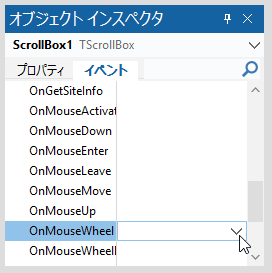
ちなみに、マウスのホイールを回転させて画像をスクロールさせたい場合は、

ScrollBox1 の OnMouseWheel をダブルクリックして手続きを作成。


次のコードを記述する。Shift キーを押したまま、ホイールを回転させると、ホイールを手前に回転させた場合は右へ(逆なら左へ)画像はスクロールする。

procedure TForm1.ScrollBox1MouseWheel(Sender: TObject; Shift: TShiftState;
  WheelDelta: Integer; MousePos: TPoint; var Handled: Boolean);
const
  ScrollStep = 40; //ホイール1回の移動量
begin
  if ssShift in Shift then
  begin
    //横スクロール(Shift + ホイール)
    ScrollBox1.HorzScrollBar.Position :=
      ScrollBox1.HorzScrollBar.Position - (WheelDelta div 120) * ScrollStep;
  end
  else
  begin
    //縦スクロール(通常)
    ScrollBox1.VertScrollBar.Position :=
      ScrollBox1.VertScrollBar.Position - (WheelDelta div 120) * ScrollStep;
  end;
  //処理済み
  Handled := True;
end;

3.まとめ


Button1 をクリックして、Image1 に画像を表示し、その上をマウスでドラッグすると伸縮・移動が自由自在なラバーバンドが表示される。

4.お願いとお断り

このサイトの内容を利用される場合は、自己責任でお願いします。記載した内容(プログラムを含む)を利用した結果、利用者および第三者に損害が発生したとしても、このサイトの管理者は一切責任を負えません。予め、ご了承ください。